If you want to build and play with friends, then you need to create or join a Pokopia Cloud Island. Similar to Palette Town, which is the single-player, in-world sandbox island you can build from scratch, a Cloud Island allows you and friends, either online or locally, to work together to build a new town full of Pokemon.
Pokemon Pokopia is made for multiplayer, and you can invite friends to visit your main world, where they can explore, get inspiration, or help you develop Palette Town. For a more collaborative experience, though, you can create an entirely separate Cloud Island where players can build together, starting from scratch with no restrictions.
How to create a Pokopia Cloud Island
To create a new Cloud Island, go to any Pokemon Center in-game, interact with the PC, and select Link Play. From here, click Play on a Cloud Island, then Create a new Cloud Island.
This then connects you to the internet, and you must have a valid Nintendo Switch Online account to continue. When you do so, you’ll be given the choice between generating a random Cloud Island or creating one from a magic number. Since Cloud Island layouts are randomly generated, you can use a magic number to create a world on a pre-generated layout. For example, one of your friends might have found the perfect playground, or you may have seen one online. If you don’t have a magic number, though, select Generate a random Cloud Island to continue.
Next, you’ll need to give your island a name, but you can change this is the island settings later on. Now, choose your settings. This is where you can decide whether other players have free reign on the island, or whether you’d rather they just visit for inspiration. Enabling Virtual Mode here prevents players from interacting with anything, so ensure this is turned to No if you plan on building with your friends. You can always change these settings later.
Hit the + button to confirm once your settings are correct, then Yes to confirm once more before creating your island. You’ll be taken straight there, but you’ll have an empty inventory on arrival. Now share your Island Address with anyone you want to play with, and they can join in the fun!
Your Pokopia Cloud Island Code, Address, and Magic Number
To find your Pokopia Cloud Island Code, Address, and Magic Number for inviting other players or sharing your randomly-generated world layout, you need to once again navigate to Link Play at a Pokemon Center PC, then clikc on the Check Settings button at the bottom of the menu.
Next, click on Cloud Island settings and scroll down to see your Island Code, Address, and Magic Number. Easy!
How to join a Pokopia Cloud Island
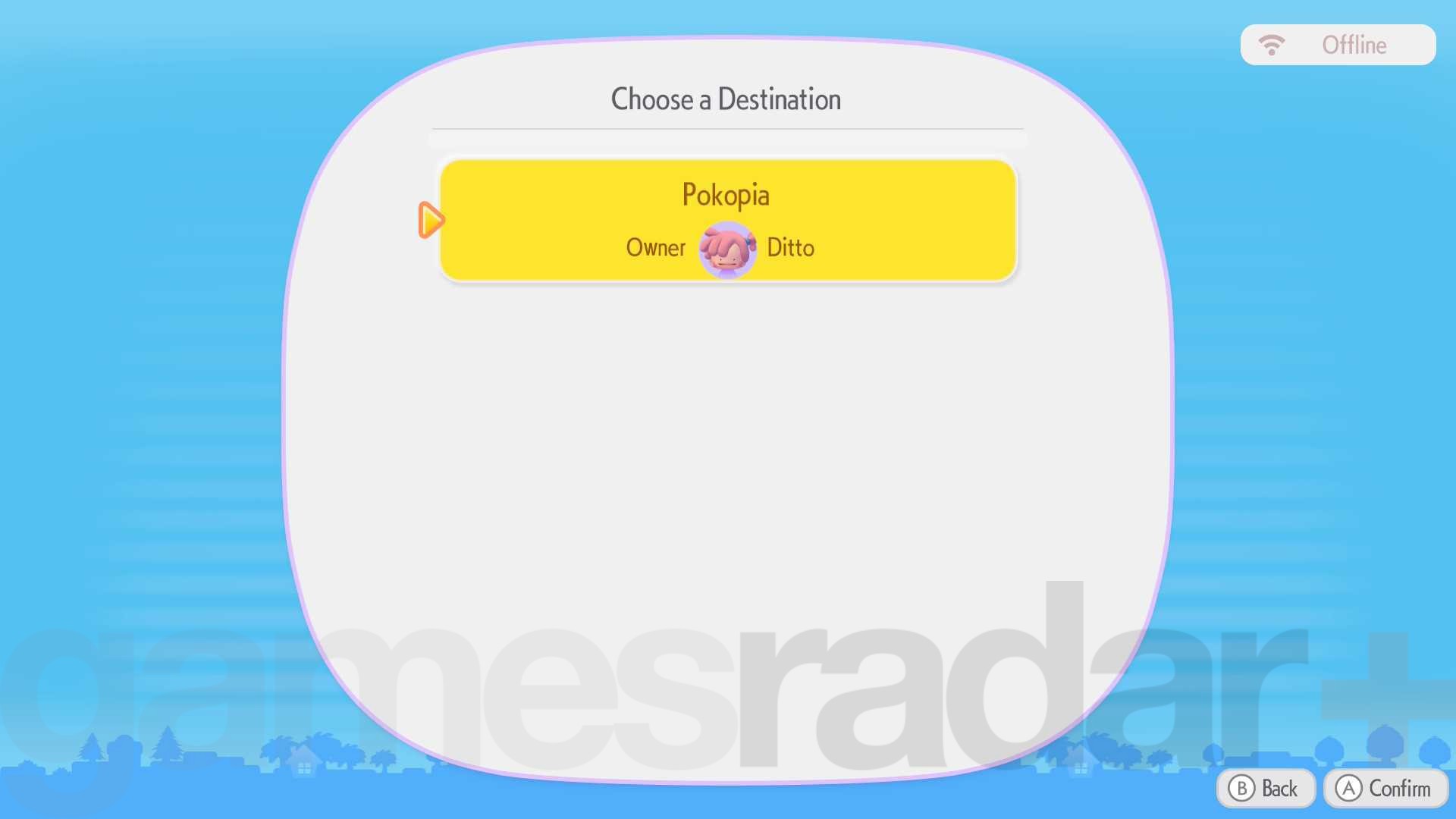
If you’re instead looking to join a Cloud Island someone else has created, whether it’s to tour for inspiration or to play with a friend, you should head to the nearest Pokemon Center PC, hit Link Play, then Play on a Cloud Island.
Now, you should select Search for a new Cloud Island, at which point you should enter the Island Address, an eight-digit combination of letters and numbers. Enter the code, and you’ll be taken to the island. Again, your inventory will be emptied, and you’ll be starting from scratch. Whether or not you can build and interact with your surroundings depends on the island’s settings.
How to delete a Pokopia Cloud Island
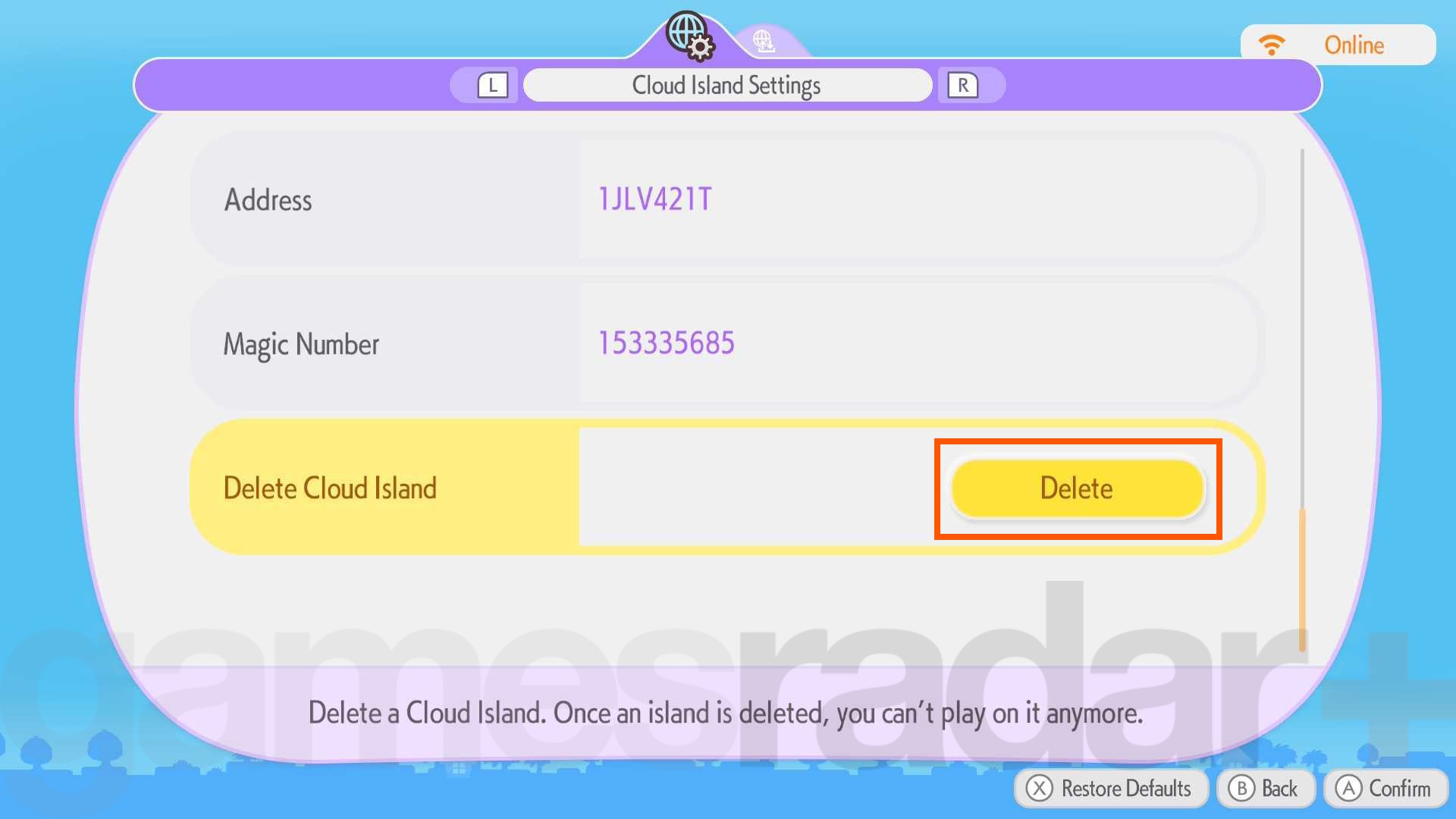
If you want to create a new Cloud Island, you must first delete your existing save, as you can only have one Cloud Island per account. You may also want to delete your Cloud Island and create a new one to improve your chances in the Pokopia Stamp Rally.
To do so, once again, you must select Link Play from a Pokemon Center PC, and then choose Play on a Cloud Island. Here, though, you then want to navigate to the Check Settings option at the bottom, then click on Cloud Island settings.
To delete your current island, simply scroll right to the bottom of the settings menu and hit Delete! Be sure you’re making the right decision before clicking Delete once more. You are then given one more chance to turn back, but, if you’re sure, select Yes, and your Cloud Island will be gone forever.
How to leave a Pokopia Cloud Island
Finally, you’ll probably need to know how to actually leave an island when you’re done and want to return to your main world.
Luckily, when you’re ready to leave, you don’t need to return to the Pokemon Center PC. Instead, open your Pokedex and press the – button to return home. Simple as that!
© GamesRadar+. Not to be reproduced without permission.