Summary
- Gaming Copilot will begin rolling out to players aged 18 and older on PC Game Bar today and for the Xbox app on mobile in October, with regional support everywhere except mainland China.
- Players trying Gaming Copilot for the first time are encouraged to try Voice Mode, get help with what’s happening on their screen, or ask for recommendations, their achievements or play history.
- We’ll continue to explore and experiment with new features as we bring this AI-powered assistant to more players and continue to optimize it for handheld devices and Xbox consoles in the near future.
AI has the potential to unlock new and exciting possibilities in how we work, learn, and play. At Xbox, we’re focused on how our innovations in AI can enhance and create more personalized experiences for players, save them time, and ultimately let them focus more on playing the games they love.
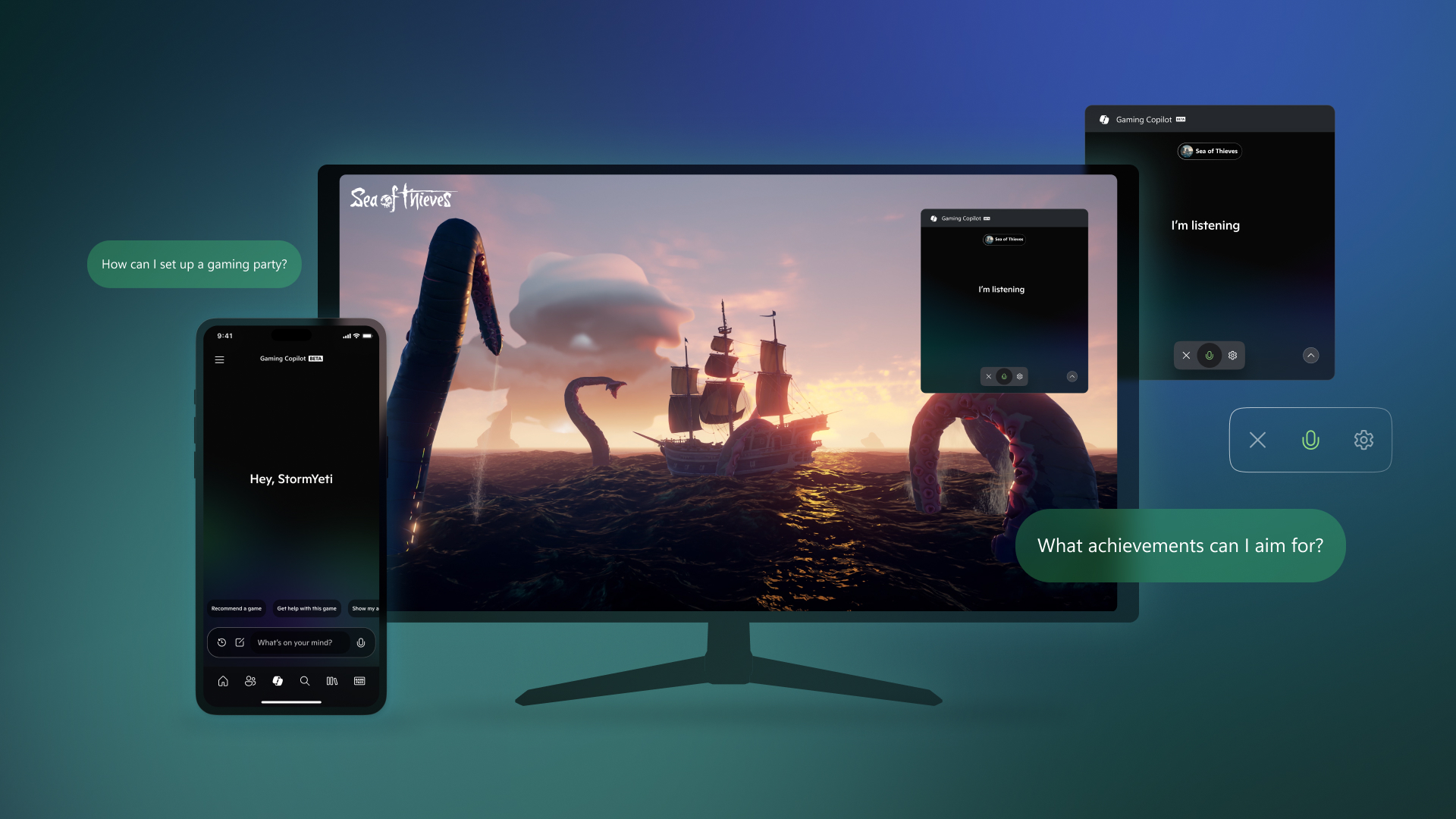
Today marks a major step in our journey to bring these AI-powered experiences to players. We’re excited to announce that Gaming Copilot, your personal gaming sidekick – which provides recommendations, help, insights, and more – is officially coming to Windows PC and Xbox on mobile. Starting today, PC players will begin seeing Gaming Copilot integrated directly into their Game Bar experience as the feature rolls out gradually over the next few weeks. It will then come to the Xbox mobile app on Apple and Android next month, where players will be able to access this personalized companion via a second screen without distracting from their gameplay.
The Journey So Far
Since announcing Gaming Copilot earlier this year, we’ve been experimenting with how to make Copilot more useful – to be there when you need help, and out of the way when you don’t. With the support and feedback from players on mobile and members of our Xbox Insiders program, we’ve since introduced new features to Gaming Copilot such as deeper in-game assistance, improved Voice Mode, and a better understanding of what’s happening on your game screen.
During this preview phase, the number one way we saw players using Gaming Copilot was to improve their gameplay, answering their questions around quests, strategies, builds, and more so they can stay in the game. Now, any Xbox player on PC or with the Xbox app on mobile will be able to leverage Gaming Copilot’s capabilities while playing, with new features and improvements like deeper insights and coaching to come as we continue to gather feedback and learn from our community.
Tips for Getting Started
For players trying Gaming Copilot for the first time, here are a few tips and suggestions to get started:
- Try Voice Mode for a more seamless gameplay experience: When actively playing games on Xbox, use Voice Mode on either PC or mobile to talk to Copilot directly, get help about the game you’re playing, and ask questions without breaking away from gameplay.
On PC, there are multiple ways to interact with Gaming Copilot in Voice Mode:
- Push to Talk – when you’re mid-game and want to quickly ask Gaming Copilot for help then jump back into the game, try the new “Push to Talk” feature. To do this, go to the “Hardware and Hotkeys” settings page where you can set your own key bind shortcut to “Push to Talk”.
- Mini Mode – for a long-running voice conversation, try pinning the Gaming Copilot widget. To do this, launch and pin the Gaming Copilot widget, click on “Talk” in the left navigation bar to start a conversation, and click the upward arrow on the bottom right to minimize the widget. Now you can continue the conversation once you return to your gameplay, all while taking up minimal space on your screen.
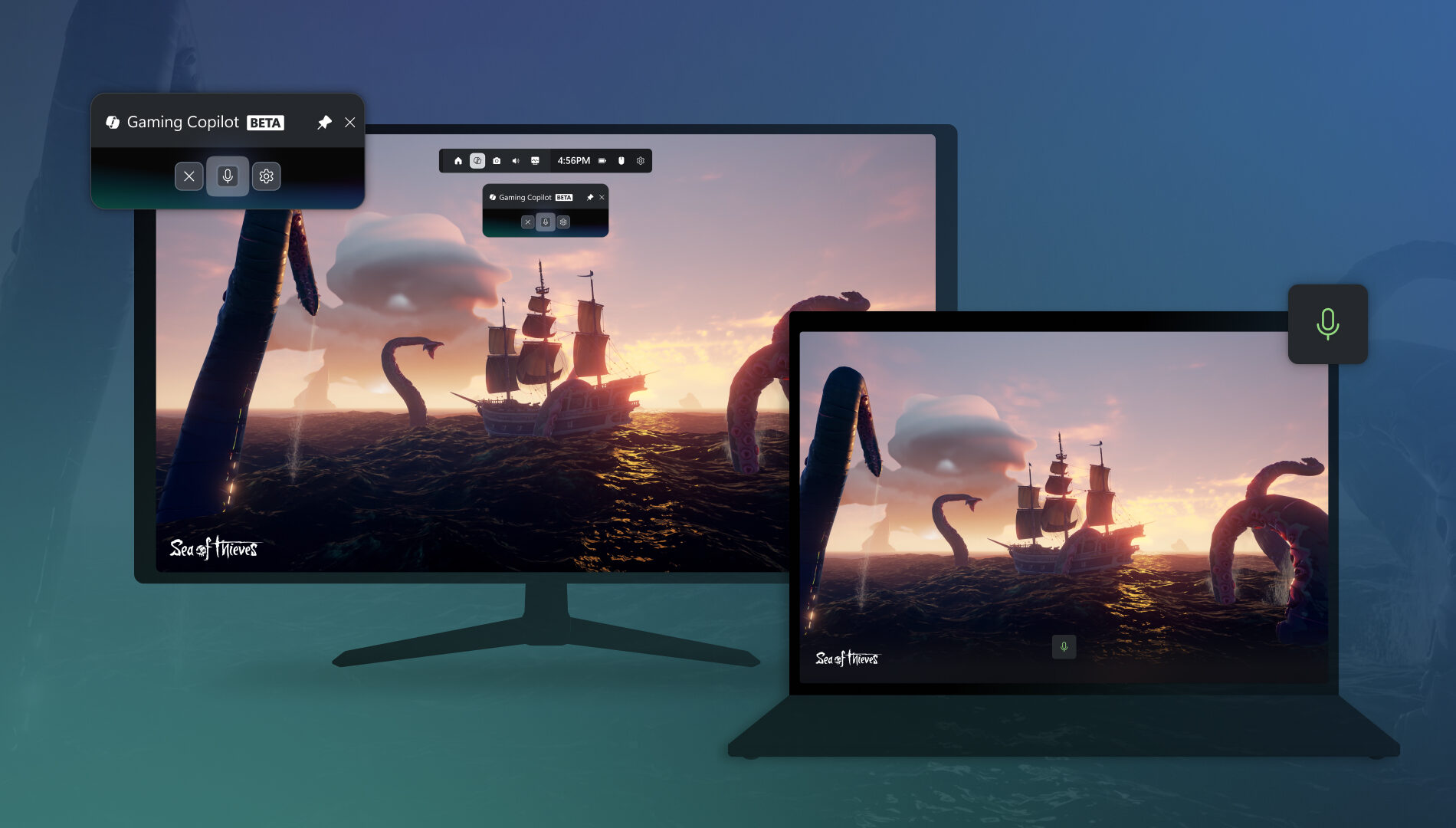
In the Xbox mobile app, simply navigate to the Gaming Copilot tab, push the “Microphone” icon to talk, and ask Copilot any question or prompt to begin a seamless conversation.
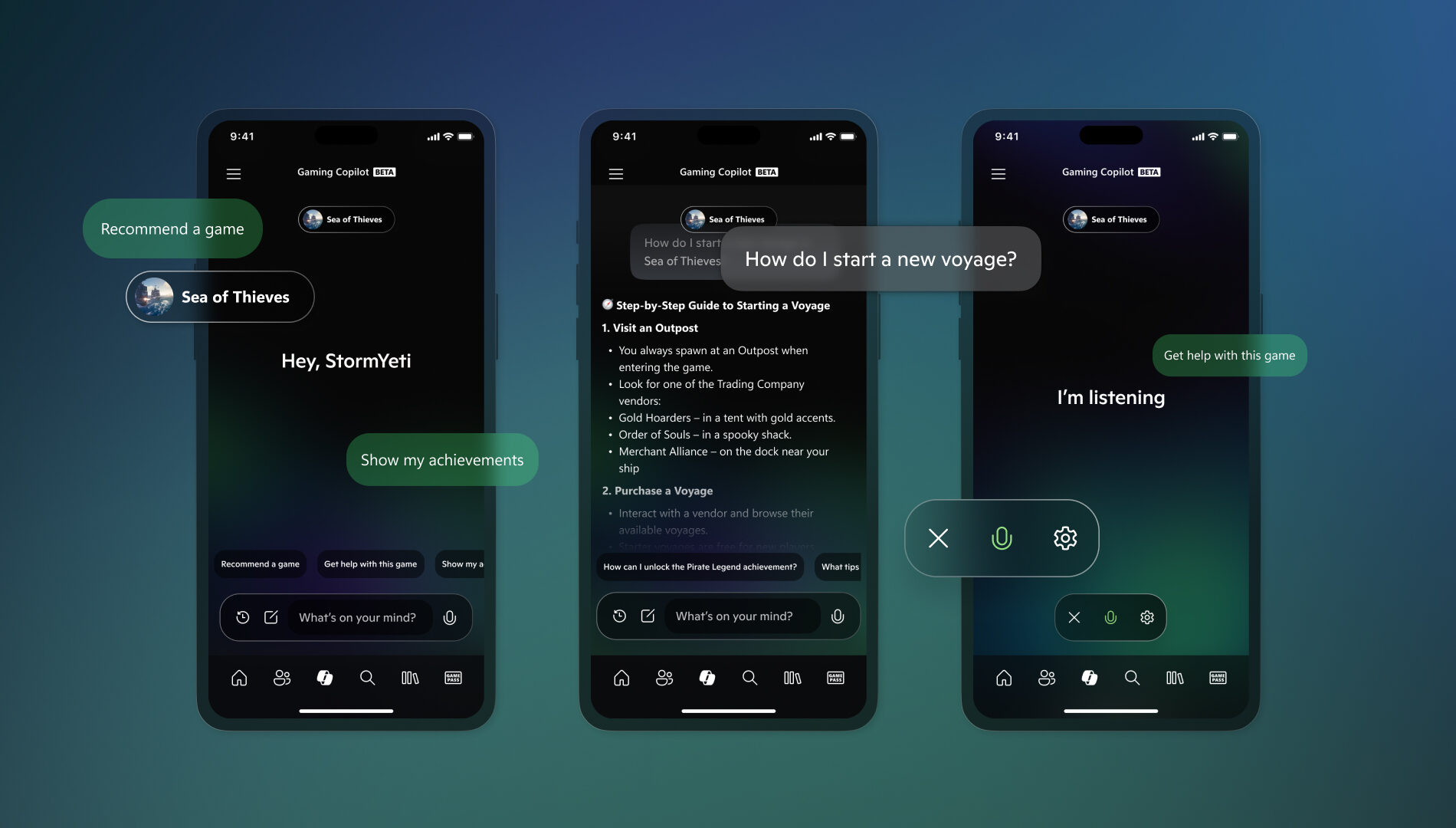
- In Voice Mode, get help by asking Copilot about what’s happening on your screen: Gaming Copilot not only knows the game you’re playing but can also understand what you’re doing in the game in real-time.
- Want to learn more about that new enemy you just encountered? Use Voice Mode to ask Copilot about what you’re seeing and any tips for taking it down.
- Can’t remember anything about that NPC you’re currently speaking to? Use Voice Mode to ask Copilot for a summary of who they are, when you first encountered them, or for their backstory.
Want to learn more about that new enemy you just encountered? Use Voice Mode to ask Copilot about what you’re seeing and any tips for taking it down.
- Ask for recommendations, or about achievements and play history: Gaming Copilot is also here to help with your gaming library, achievements, and play history! If you’re new to Xbox, tell Copilot about your favorite genres and let it recommend new games to play, or ask it for game recommendations based on your play history. Copilot also knows what achievements you’ve already unlocked, so you can also ask it for help hunting down the next achievement to unlock in your favorite game.
We’ll continue to explore and experiment with new features for Gaming Copilot as we bring this AI-powered assistant to more players and continue to optimize it for handheld devices, such as the ROG Xbox Ally and ROG Xbox Ally X launching on October 16, and Xbox consoles in the near future.
How to Start Using Gaming Copilot
Gaming Copilot will begin rolling out to players aged 18 and older on PC Game Bar today and for the Xbox app on mobile in October, with regional support everywhere except mainland China.
To use Gaming Copilot in Game Bar, make sure you have the Xbox PC app installed on your Windows device. Press Windows logo key + G to open Game Bar over your game, app, or desktop. Look for the Gaming Copilot icon in the Home Bar, open the widget, and log into your Xbox account for the full experience.
To use Gaming Copilot on mobile, download the latest version of the Xbox mobile app, navigate to the Copilot section, and simply have the app open on your device for real-time, distraction-free support while you play.
You can visit our support page for more information about Gaming Copilot.
Help Us Shape the Future of Gaming Copilot
Your feedback is critical as we continue to develop Gaming Copilot and make it even more helpful for players’ needs and preferences. Anyone is welcome to share feedback directly in the experience by selecting “Give feedback” or by simply marking incorrect responses from Copilot with a “thumbs up” or “thumbs down”.
You can also provide direct feedback to Team Xbox by following the steps here under the “Report a problem online” section.